 Perch
Perch 🐦 Perch
Your machine, at a glance.




A local system + developer dashboard for Linux — monitoring, ops, a full
developer toolbox, and an AI assistant, in one token-protected web app that
runs on 127.0.0.1.
What is this?
Perch is a self-hosted control panel for your own Linux machine. It runs
as a small local web service and gives you a single browser tab (or a native
desktop window) where you can see everything that is happening on the
system and act on it — instead of juggling htop, df, du, systemctl,
journalctl, lsof, docker ps, Postman, and a pile of scratch converter
tabs.
It is built for:
- Daily laptop/workstation care — watch CPU, memory, temperature and battery health, get alerts when something crosses a threshold, clean up caches, and manage packages and settings without opening five terminals.
- Developers — manage Docker containers, systemd services, listening ports, git repos, and API requests from one place, with a built-in toolbox for the everyday small jobs (JSON, regex, diff, cron, secrets…).
- Privacy-minded users — everything runs locally as you. It binds to
127.0.0.1, requires an access token, and never sends data anywhere.
Under the hood it is a single small Python service (stdlib HTTP server +
psutil) with a framework-free HTML/CSS/JS frontend — no database, no build
step, no cloud.
What can you do with it?
Monitor the system
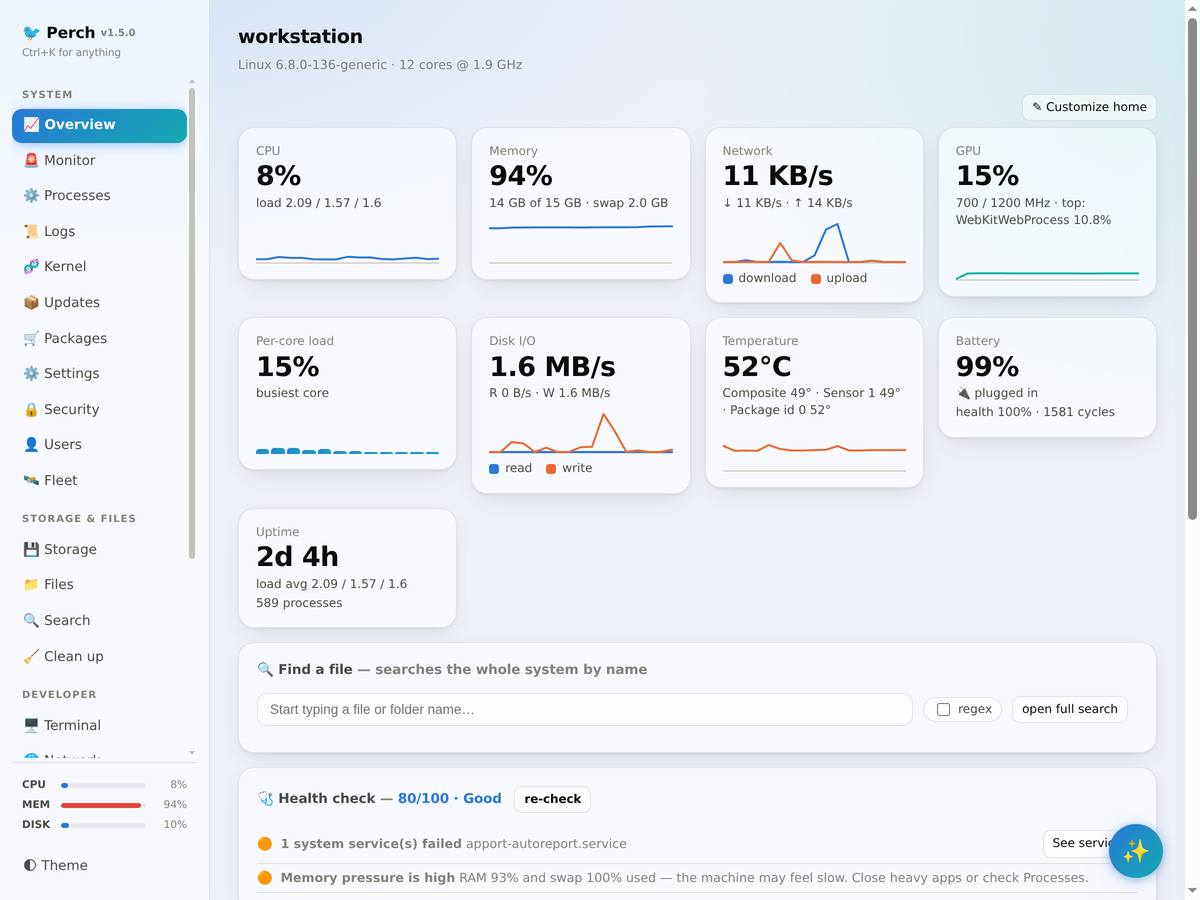
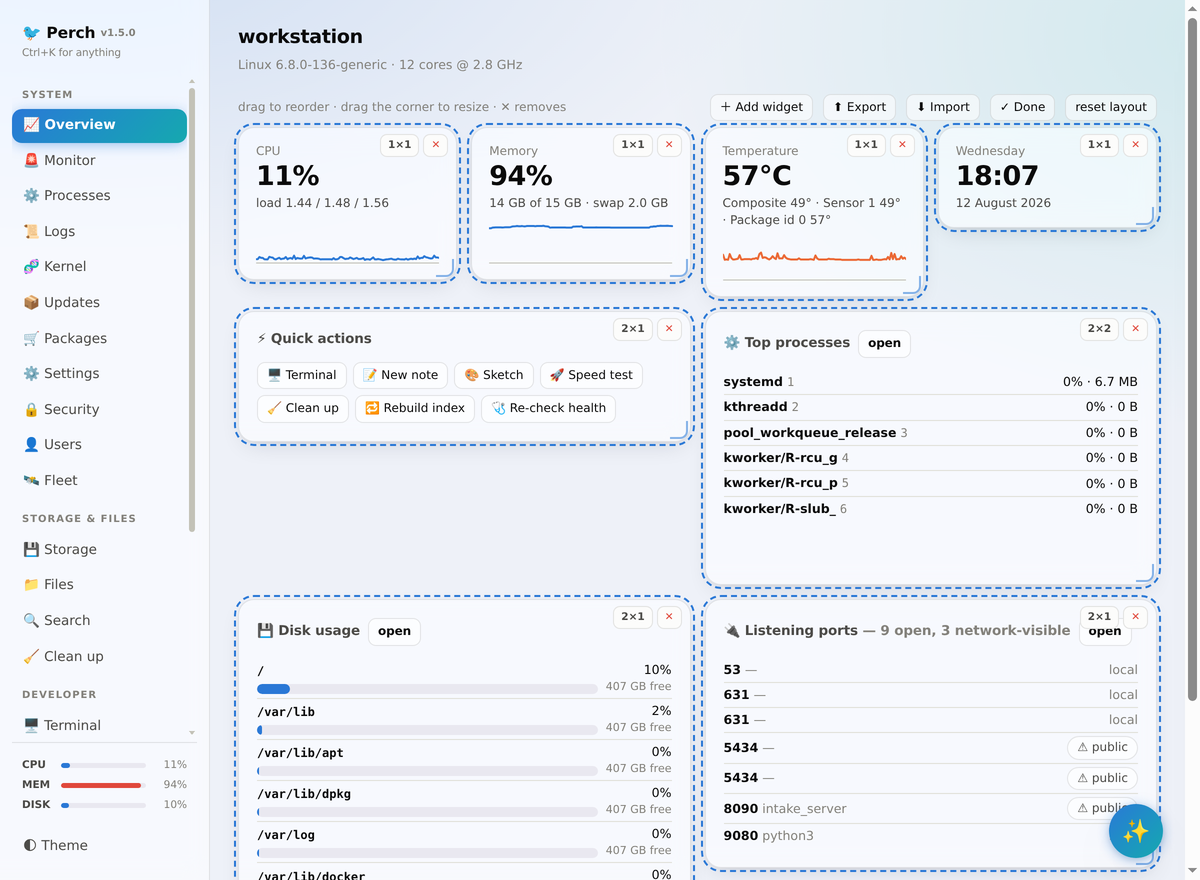
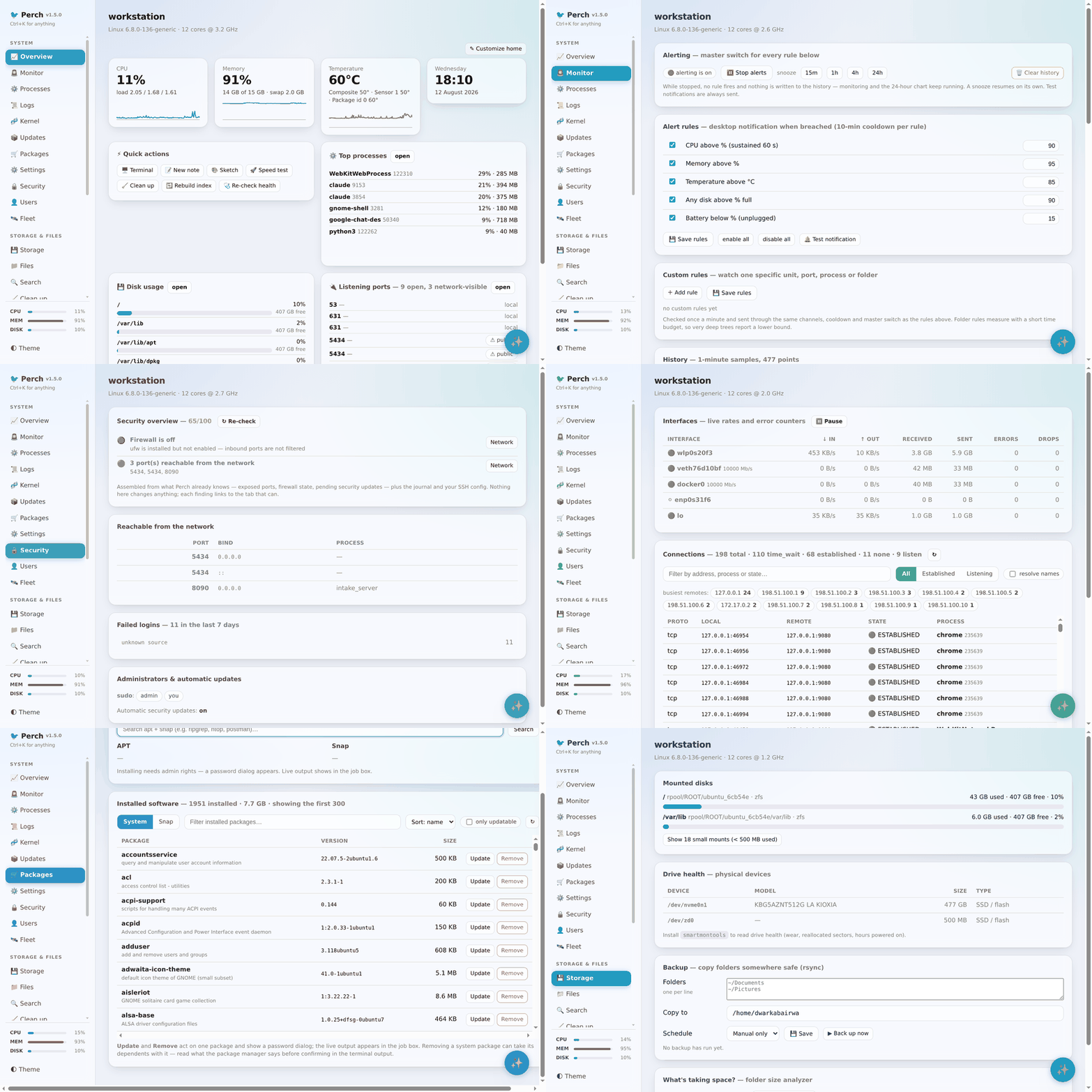
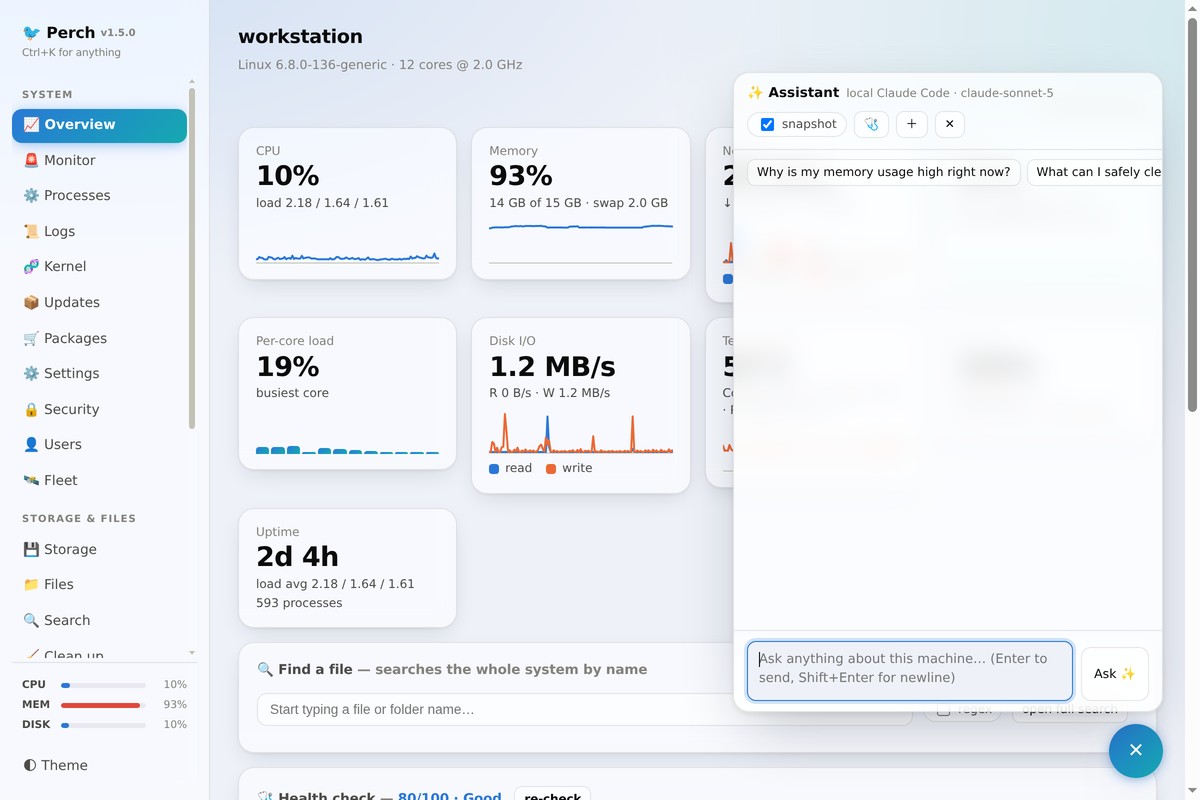
Overview — a fully customizable home screen. Every item on it is a widget you can drag to reorder, resize by dragging its corner (in grid columns and rows) and remove, panels included — and + Add widget opens a gallery of everything on offer. Out of the box you get live charts for CPU, memory, GPU, disk I/O, temperatures and network, a file search box, a hardware panel (model/BIOS, battery health & cycles, Wi-Fi signal), a critical-log panel and a health scorecard (score out of 100 with plain-language findings and one-click fixes). The gallery adds top processes, disk usage, listening ports, containers & pods, recent alerts, pending updates, failed services, git repositories, reclaimable space, quick-action shortcuts, a scratchpad, a clock and network interfaces. Anything you remove goes back to the gallery, so nothing is ever lost; the layout is saved in your browser and reset layout restores the default.
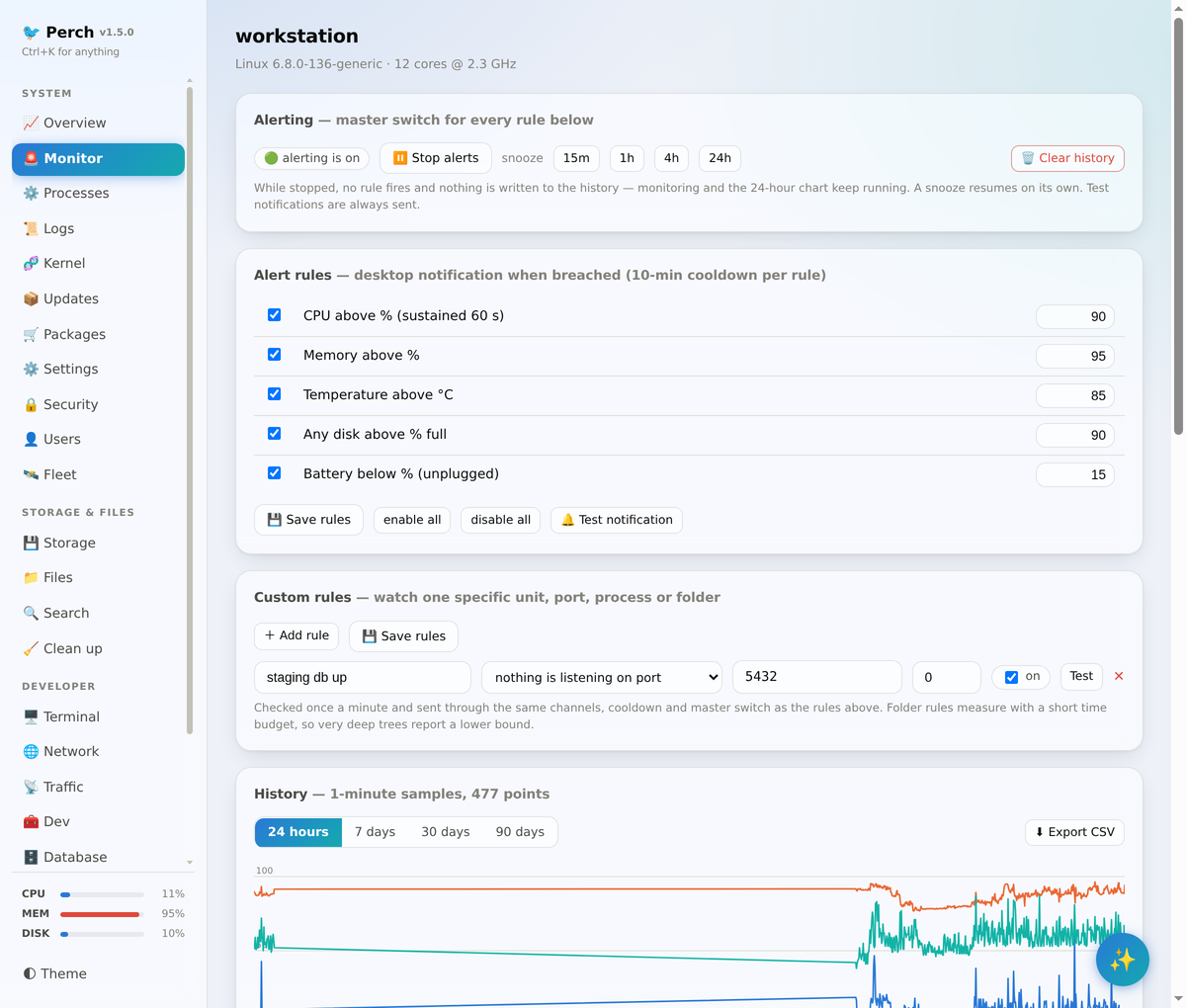
Monitor — threshold alerts (CPU/mem/disk/temp…) with desktop notifications and outbound channels (ntfy, Slack, Discord, generic webhook), log-pattern watchers, and history that outlives the samples — 1-minute detail for a day, hourly averages for 90 days, with CSV export. A periodic digest can send a summary on a schedule through the same channels, so a healthy machine still says something. Alerting has a master switch: stop alerts entirely, snooze them for 15 min / 1 h / 4 h / 24 h (it resumes on its own), enable or disable every rule at once, and clear the alert history. While alerting is off the sidebar shows 🔕 and history keeps recording — only the alerts stop. Beyond the built-in thresholds you can add custom rules for the specific things this machine should be doing: a systemd unit that stopped running, a port nothing is listening on, a process that vanished, or a folder that grew past a size limit.
Security — one page for "is this machine exposed?": ports reachable from the network, whether the firewall is really on, pending security updates, failed logins from the journal grouped by source,
sshd_configred flags, admin-group membership and automatic-update status. Scored, worst first, read-only.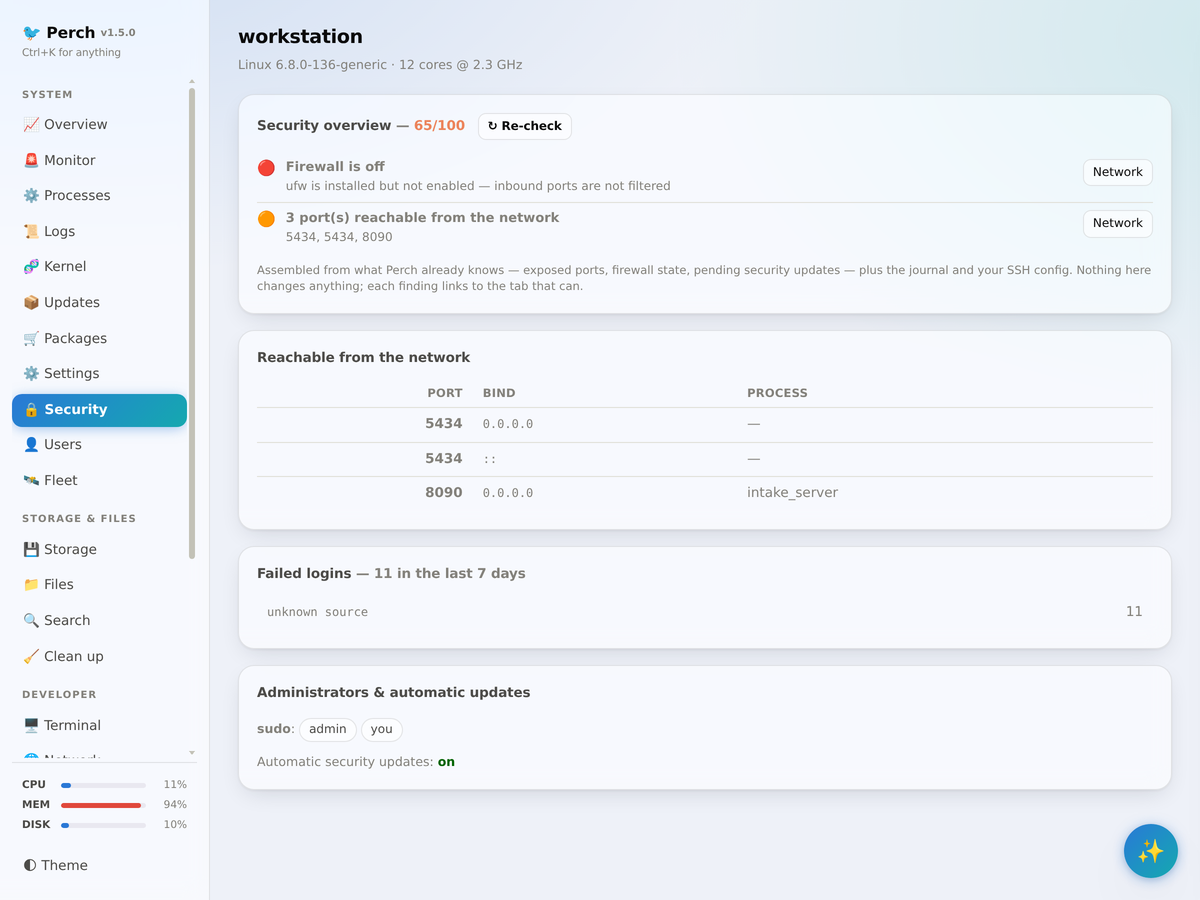
Fleet — other machines running Perch, in one grid. Each is polled over its own read-only API, so there is no agent to install; their tokens are stored chmod 600 and never sent to the browser.
Processes / Users / Logs / Kernel / Updates — kill processes, inspect any process in a detail modal, browse the journal live, read kernel tunables, and see pending APT updates with a sidebar badge.
Manage storage & files
- Storage — disk usage plus a folder-size analyzer to find what's eating space, drive health (model, size, SSD vs spinning, and a SMART check per device), and a backup helper (rsync folders to another drive, on demand or a daily/weekly schedule).
- Clean up — caches and trash with an optional weekly auto tidy-up, plus two lenses for the space you forgot about: a duplicate finder and big files you haven't opened in a long time. Both scan a folder you choose under a time budget, and neither deletes anything for you.
- Files — a full file browser with previews (images, PDF, video, audio, Word, Excel), open-with, bulk trash, set-as-wallpaper, and a side drawer containing a text editor (with vim mode) and a sketch canvas.
- Search — whole-system filename search with regex support, backed by
Perch's own index (no
locateneeded).
Developer tools
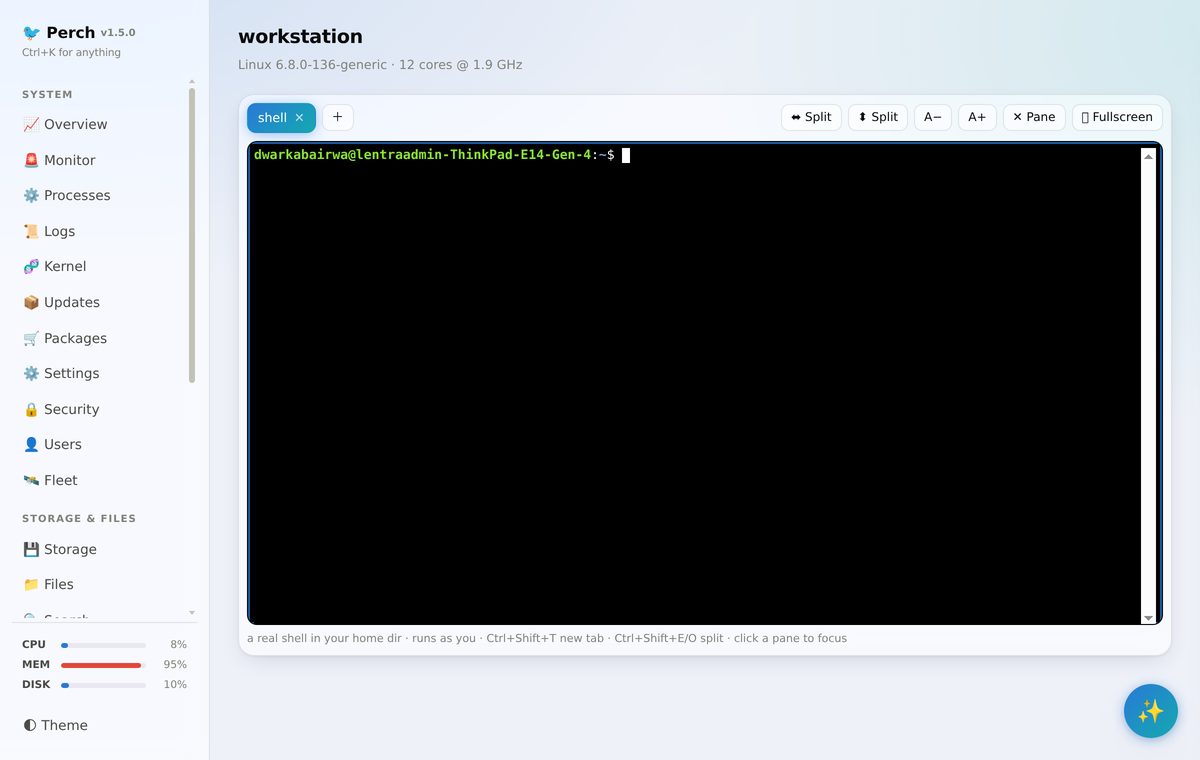
Terminal — a real shell in the browser (a proper pty, not a command box), running as you in your home directory. A kitty-style multiplexer: multiple session tabs, drag-resizable splits (side-by-side or stacked), fullscreen, and font zoom, with keyboard shortcuts (Ctrl+Shift+T/E/O/W/±).
Network — listening ports showing which process (and command line) holds each one, filterable by port/process/command, with Stop (SIGTERM) and Force (SIGKILL) on the exact PID shown; public IP and a speed test. Perch's own port is marked so you can't shut the dashboard on yourself, and a firewall panel sits alongside — service status without privileges, and the live rule set on demand through
pkexec.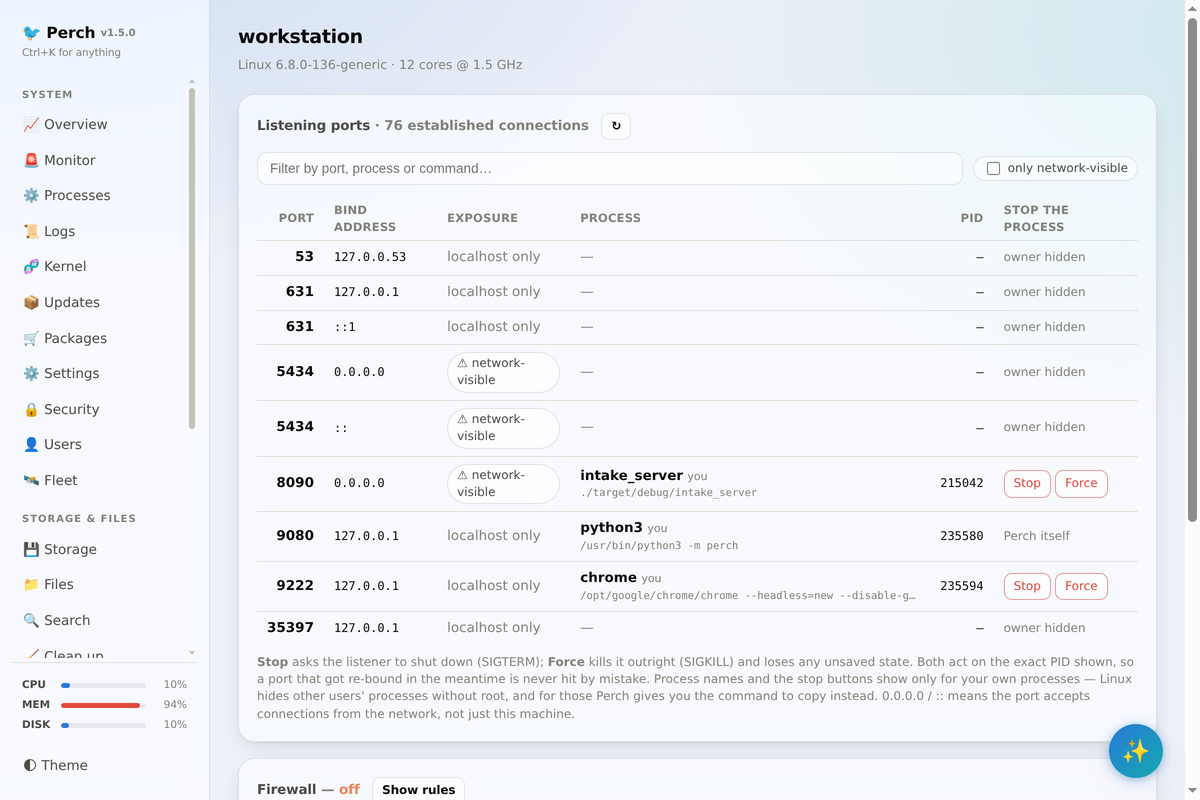
Traffic — who this machine is talking to: live TCP/UDP connections with the owning process, busiest remote addresses, and per-interface in/out rates with error and drop counters — all without privileges. Plus packet capture via
tcpdump, bounded by packet count and duration, saved as a.pcapyou can read in place or download for Wireshark. Capture needs a password prompt and records everything on the wire, including credentials on unencrypted protocols, so it is always deliberate.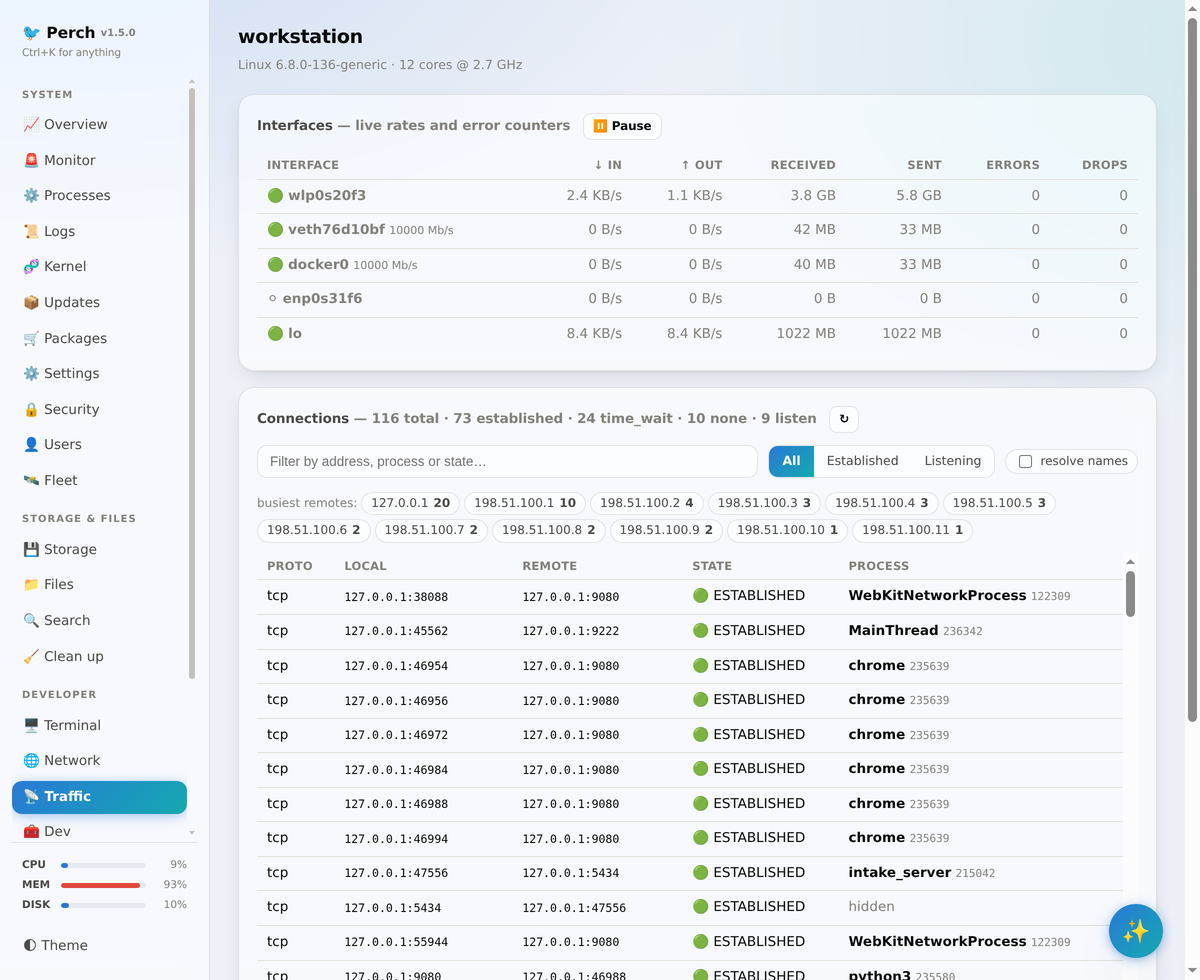
Dev — Docker containers with live stats, logs, shell, compose control and prune, plus disk usage showing what images, containers, volumes and build cache actually cost and how much a prune would reclaim; systemd user services with enable/disable at login; toolchain overview. Perch also detects any other container environment on the machine — Podman, nerdctl, LXD/Incus and Kubernetes — and lists their containers (start/stop/restart/remove/shell/ logs) and pods (namespace, ready count, restarts, node, logs). Nothing is shown for engines you don't have installed.
Database — browse SQLite files and PostgreSQL (host
psqlor a running container), read-only by default with opt-in writes.Git — a dashboard of your repos: branch, dirty state, ahead/behind, with fetch/pull/stash, and a project launcher that runs the repo's own npm/yarn/pnpm scripts or Make targets as live jobs.
API client — a mini-Postman: collections, environments with
{{variables}}, request history, multi-step flows you can run and export, and import from Postman collections, curl commands, or raw HTTP.Runtimes — detect installed language runtimes, switch defaults (rustup,
update-alternatives), and manage SSH keys (list, fingerprint, copy public key, generate ed25519).Tools — JSON format/sort/extract, JSON ↔ escaped string (for embedding a document in another one, and for reading it back out of a log line), YAML ↔ JSON, base64/URL/epoch/UUID/ JWT/SHA-256 converters, regex tester, text diff, cron explainer, color and case converters, secret generator, website screenshot preview, and a scheduled-tasks manager (edit crontab, enable/disable systemd timers).
AI assistant
A floating button in the bottom-right corner opens the assistant as a docked chat panel over whatever you're looking at — so you can ask about the tab you're on without navigating away from it (Ctrl+I, or Esc to close). Chat about your machine with a live system snapshot injected, and generate a one-click health report. The provider is pluggable: the local Claude CLI (default, no API key), the Anthropic API, any OpenAI-compatible endpoint, or a local Ollama model — configured in Settings.
Control the desktop
Settings — brightness, volume, power profile, blank/suspend timers, night light, Do Not Disturb, Bluetooth, Wi-Fi, GNOME theme, wallpaper (and a live wallpaper slideshow), plus dashboard theming: accent colours and animated backgrounds.
Tweaks — GNOME Tweaks-style controls: GTK / icon / cursor themes, interface/monospace/document fonts with antialiasing & hinting, titlebar buttons, clock format, animations, hot corner, workspaces, and mouse / touchpad pointer speed.
Dashboard theme — accent colour, animated backgrounds, a Simple mode toggle (hide developer tabs), and a Reduce effects toggle that turns off blur, the gradient backdrop, glows and animations for low-powered machines.
Packages — search, install, remove and upgrade across your native package manager (apt, dnf, pacman or zypper, auto-detected) plus snap and flatpak when present. Also lists everything already installed from every manager, with version, size and description, filterable and sortable, an only updatable toggle, and per-package Update and Remove. A system password dialog (
pkexec) appears for privileged actions and the live output streams into the job box.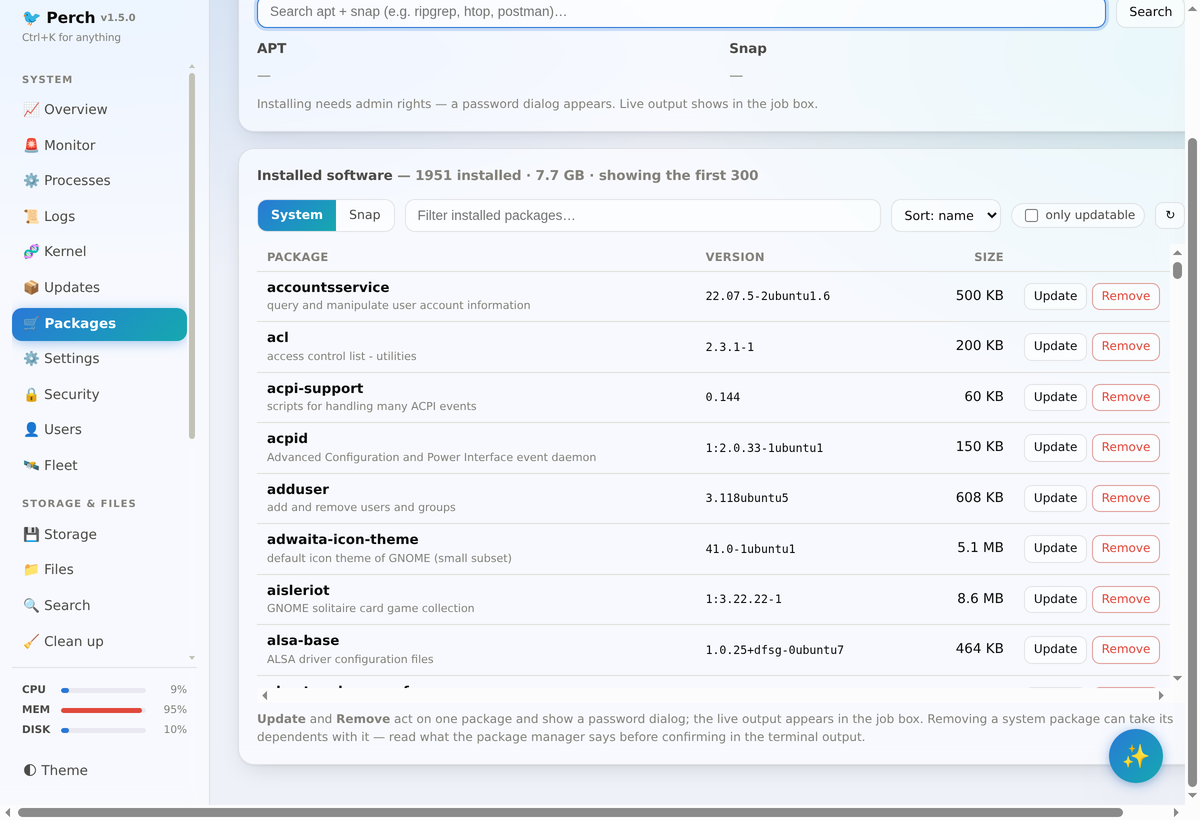
About & self-update — Settings shows the running version (also next to the name in the sidebar), how this copy was installed, where it lives and which directories it uses. Check for updates asks GitHub for the newest published release and shows its notes; Update now fast-forwards a git checkout or installs the release
.deb, depending on how you installed it, and refuses rather than risk a checkout with uncommitted work.
Everything is reachable through a Ctrl+K command palette (and ? lists every keyboard shortcut), the assistant is one click away in the bottom-right corner from any tab, and the grouped sidebar scrolls on its own (independently of the page) with live CPU/MEM/DISK mini-bars pinned at the bottom. Integrations that aren't installed on your machine hide themselves automatically — and a Simple mode toggle (in Settings) hides the developer tabs entirely for a monitoring-and-settings dashboard aimed at non-technical users.
Installation
Requirements
- Linux — package management works on apt/dnf/pacman/zypper; the Settings and Tweaks tabs assume GNOME and hide themselves elsewhere
- Required: Python ≥ 3.8,
psutil,PyYAML(psutilauto-installs on first run if missing) - Optional:
python-docx+openpyxl(Word/Excel preview), PyGObject + WebKit2GTK (native window), Chrome/Chromium (website preview), Docker, theclaudeCLI or an LLM API key (AI tab)
Option 1 — Debian / Ubuntu package (recommended)
git clone https://github.com/dwarka-prasad/perch && cd perch
make deb                                  # builds dist/perch_1.2.3_all.deb
sudo apt install ./dist/perch_1.2.3_all.deb
Then launch Perch from your app menu, or:
perch-desktop     # native window
perch             # headless — open the printed URL in a browser
Option 2 — From source, per-user (no root)
git clone https://github.com/dwarka-prasad/perch && cd perch
make install-user
This sets up a systemd user service (perch.service) plus an app-menu
launcher — no pip, no root. Useful commands afterwards:
systemctl --user status perch     # is it running?
systemctl --user restart perch    # restart after editing the code
make uninstall-user               # remove service + launcher
Option 3 — Docker (headless host monitoring)
git clone https://github.com/dwarka-prasad/perch && cd perch
docker compose -f docker/compose.yaml up -d --build
docker compose -f docker/compose.yaml logs    # copy the token URL
The container runs with host PID + network namespaces for real visibility. Desktop-only features (brightness, wallpaper, Bluetooth, notifications, opening apps) work only in the native/
.debinstall on the host.
Just run it (no install)
make run          # http://127.0.0.1:9080  (token printed at startup)
make desktop      # native GTK/WebKit window
First run
On first start Perch generates an access token in ~/.perch-token and prints
a ready-to-open URL like http://127.0.0.1:9080/?t=<token>. Every request
needs that token — bookmark the URL.
Configuration
| Env | Default | Meaning |
|---|---|---|
PERCH_PORT |
9080 |
Port to bind |
PERCH_HOST |
127.0.0.1 |
Bind address (0.0.0.0 to reach from LAN — still token-protected) |
State (search index, alert history, screenshots) lives under
~/.cache/perch; alert and app config under ~/.config/perch — including
alertctl.json (alerting on/off/snooze), customrules.json (your own alert
rules), fleet.json (other machines, chmod 600) and home.json (the
home-screen layout). Because the layout lives on
the server, it follows you to a different browser or machine; the browser keeps
a copy as an offline cache, and reset layout on the Overview tab clears both.
Security
Perch binds to 127.0.0.1 and every request needs the token from
~/.perch-token. On first visit the URL token is exchanged for an
HttpOnly, SameSite=Strict cookie and the URL is cleaned, so the token
stops living in browser history; repeated bad tokens from one address are
locked out. Privileged actions (package install, upgrades) go through
pkexec, which shows a system password dialog — credentials are never stored
or handled by Perch. The web terminal and database browser run as your user;
writes from the file editor/sketch are restricted to your home directory.
Review the code before exposing it beyond localhost.
Roadmap and contributing
What comes next is in ROADMAP.md; issues tagged help wanted and good first issue are open to anyone.
Development
See CONTRIBUTING.md. Backend is one organised module;
frontend is plain HTML/CSS/JS with no build step. make help lists tasks.
make test            # unit + HTTP smoke tests (stdlib unittest only)
make test-frontend   # drives the real app in headless Chrome
The frontend suite boots a throwaway Perch on a temp HOME, opens it in
headless Chrome over the DevTools Protocol, and asserts the app actually
works — live tiles, the widget gallery, layout persistence across a reload,
the alerting switch, custom rules, port filtering, and every tab opening
without a console error. It skips itself if no Chrome is on PATH.
Releasing
CI (.github/workflows/ci.yml) lints, compiles, and builds the .deb and
Docker image on every push/PR. To cut a release, bump the version in all four
places that carry it — setup.cfg (the package metadata; pyproject.toml
deliberately holds none), packaging/debian/control (what build-deb.sh
reads), src/perch/config.py and src/perch/__init__.py — add a
CHANGELOG.md entry, then:
git tag v1.0.0 && git push origin v1.0.0
release.yml then builds the .deb, pushes the image to
ghcr.io/<owner>/perch, and publishes a GitHub Release with the .deb
attached.
License
MIT — see LICENSE.